

What is CADlink? CADlink is professional RIP software used to prepare, process, manage, and send digital artwork to compatible printing equipment. It is especially well known among direct-to-film printing businesses, garment decorators, print shops, and custom merchandise producers that require precise control over color, white ink, print resolution, layout, and production queues.
In a DTF production environment, sending an image directly from ordinary design software to a printer is rarely enough. The printer must receive correctly processed information for every color channel, including the white underbase required when printing transfers for dark or colored garments. CADlink helps manage this technical process by converting artwork into printer-ready data according to the selected printer, ink, film, resolution, and color profile.
At CADlink, we focus on helping printing professionals understand and access CADlink Digital Factory solutions for efficient digital production.
What Is CADlink Digital Factory?
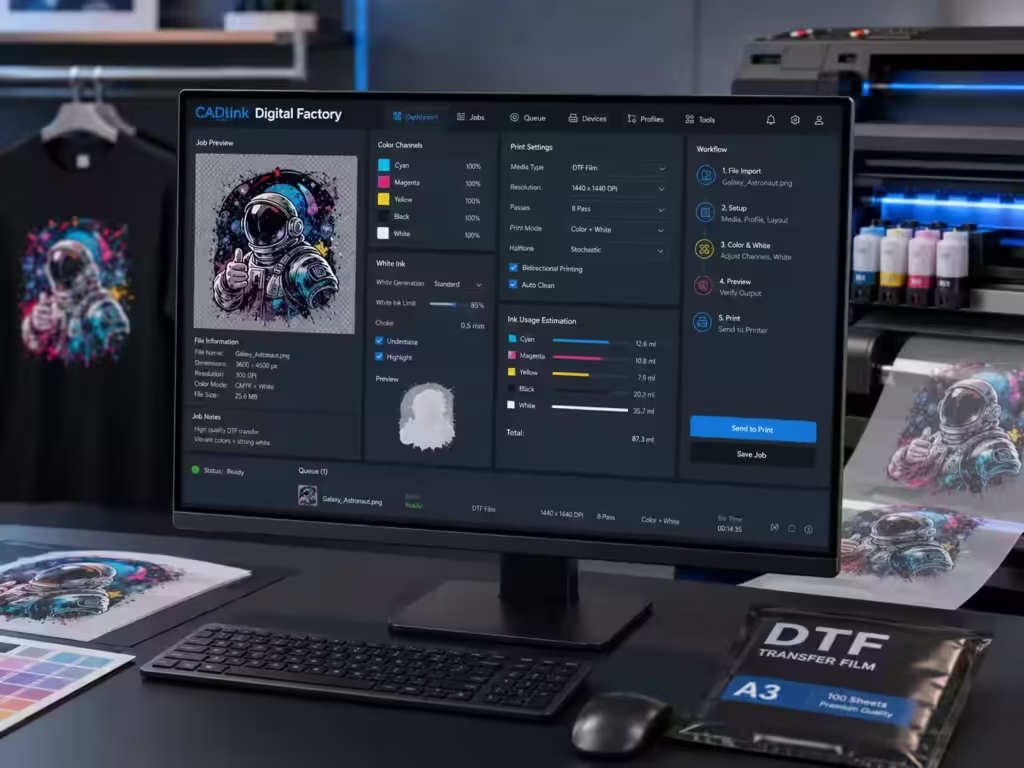
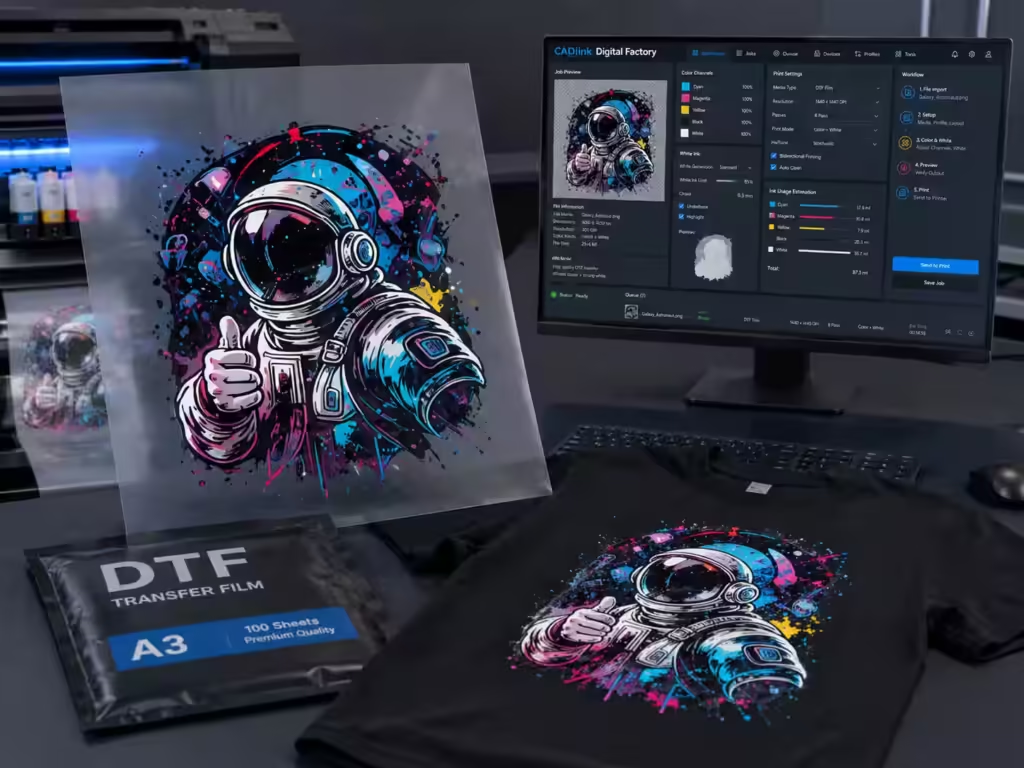
CADlink Digital Factory is a production workflow and RIP software platform created for professional digital printing. Instead of functioning only as a basic printer driver, it provides an organized environment where we can import artwork, select production settings, manage color, generate white ink, preview output, arrange designs, and control print jobs.
The DTF edition is specifically configured for direct-to-film production. It can manage important processes such as:
- White ink generation
- ICC color profile selection
- Artwork mirroring
- Print resolution
- Ink density
- Image sizing
- Print queues
- Job duplication
- Printer communication
- Production layout
- Halftone processing
These controls allow us to prepare the artwork according to the requirements of the printer and transfer process instead of relying on generic settings. CADlink Digital Factory DTF can handle white ink, ICC profiles, print queues, resolution settings, mirror printing, and communication between the computer and printer.
What Does RIP Mean in CADlink Software?
RIP stands for Raster Image Processor. A RIP converts digital artwork, page descriptions, text, vector graphics, and images into rasterized information that a printer can reproduce. A raster image is formed from a grid of individual pixels, with each pixel carrying specific color and placement information.
A technical explanation of this process is available in the Wikipedia article about raster image processors.
For DTF printing, RIP processing is more advanced than simply turning an image into pixels. The software may also determine:
- Where colored ink should be printed
- Where the white underbase should appear
- How much white ink should be applied
- How colors should be interpreted
- Which printer resolution should be used
- Whether the design should be mirrored
- How multiple designs should be positioned on the film
- In what order the jobs should be printed
This is why we describe CADlink as a production tool rather than ordinary image-editing software. Programs used to design artwork create the visual file. CADlink prepares that file for the physical printing process.
How Does CADlink Work for DTF Printing?
CADlink receives an artwork file and processes it according to the settings associated with the selected printer queue. A typical workflow includes several stages.
1. Importing the Artwork
We begin by importing a supported artwork file into the software. Common production formats can include:
- PNG
- TIFF
- PSD
- AI
- EPS
- JPEG
Transparent PNG files are widely used for DTF work because they preserve the shape of the design without adding an unwanted rectangular background. Artwork should normally be created at the intended print dimensions and at a resolution suitable for high-quality output.
CADlink supports several common raster and vector file types, although the exact behavior may depend on the installed edition, printer driver, and production configuration.
2. Processing the Color Information
After the design is imported, CADlink interprets its color information. The selected ICC profile helps translate colors from the digital artwork into values that can be reproduced by a specific combination of printer, ink, film, resolution, and production settings.
The correct profile is essential because two printers may produce different results from the same digital color values. Differences in ink formulation, printhead behavior, film coating, pass count, and resolution can affect the final output.
Using an unsuitable profile may contribute to:
- Dull colors
- Incorrect skin tones
- Oversaturated areas
- Weak gradients
- Unexpected color shifts
- Excessive ink application
- Inconsistent results between jobs
We should therefore use an ICC profile developed for the exact production combination whenever possible. The profile should match the printer model, ink, PET film, and output resolution.
3. Generating the White Ink Underbase
White ink is one of the most important parts of a DTF workflow. Standard CMYK colors are not sufficiently opaque by themselves when transferred to dark garments. A white layer is normally printed behind the colored image to create opacity and preserve color brightness.
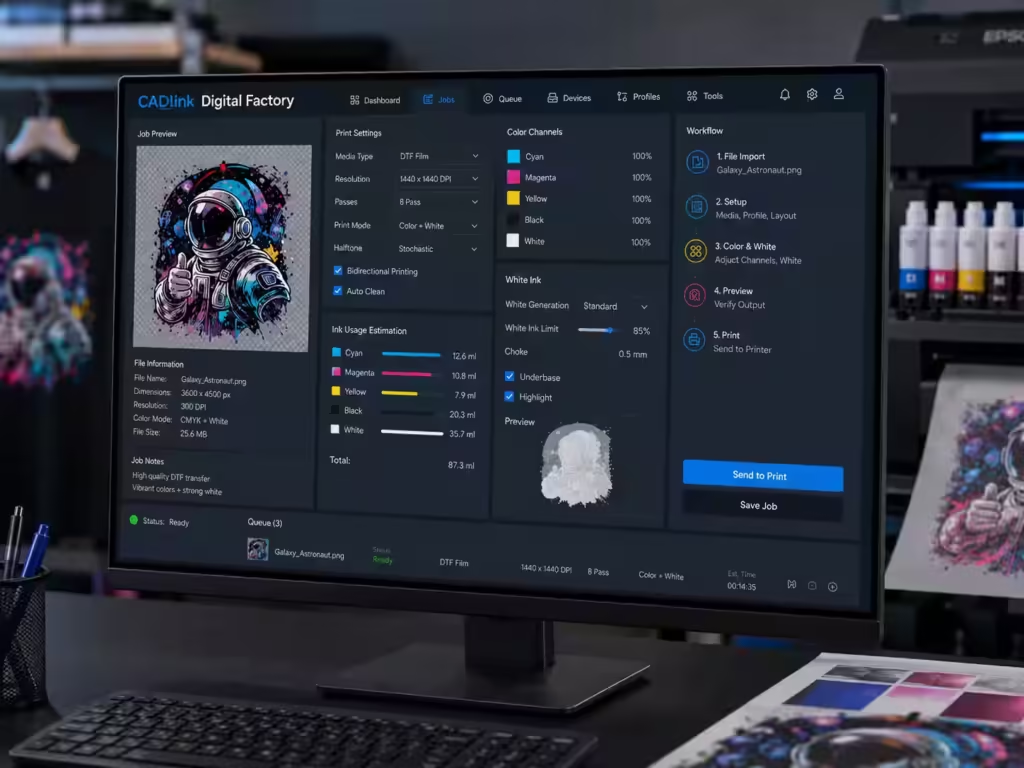
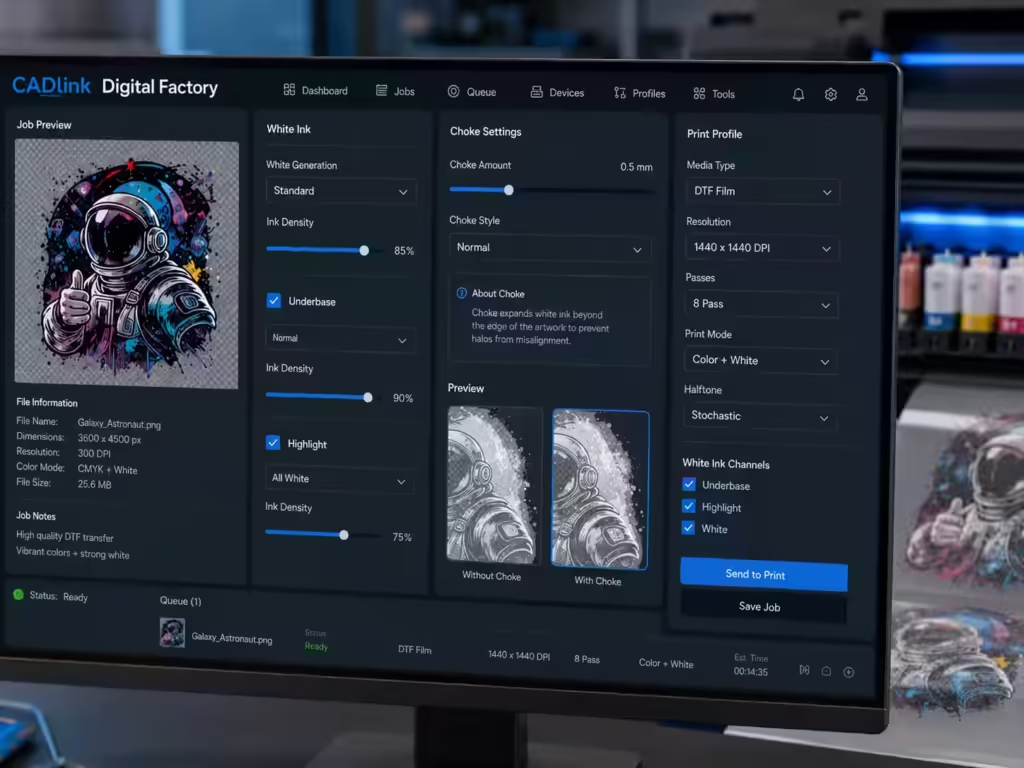
CADlink can generate this white underbase automatically based on the visible areas of the artwork. Depending on the configuration, we may be able to adjust settings such as:
- White ink density
- Underbase strength
- White choke
- White spread
- Highlight white
- Spot white
- Black removal
- Transparency thresholds
White choke slightly reduces the edge of the white layer so that it does not extend beyond the colored artwork. Without proper choke settings, a thin white outline may become visible around the finished design.
Too little white ink can produce weak or translucent transfers. Too much white ink can increase ink consumption, reduce detail, make the transfer feel heavier, and create curing difficulties. The goal is not simply to use the maximum possible amount of white ink. We need a balanced underbase that supports color while maintaining clean edges and efficient ink usage.
4. Mirroring the Design
DTF artwork must generally be printed in reverse because the printed side of the transfer is placed against the garment during heat pressing. Once transferred, the image appears in its correct orientation.
CADlink can apply mirror settings through the printer queue or job configuration. We should always inspect the preview before printing, particularly when the artwork contains:
- Text
- Numbers
- Logos
- Directional symbols
- Uniform names
- Sleeve graphics
- Left-chest designs
A failure to mirror the artwork can make the printed transfer unusable.
5. Selecting the Print Resolution
Print resolution affects detail, smoothness, production speed, and ink behavior. A higher resolution may improve fine lines and gradients, but it can also increase processing and printing time.
The best resolution depends on:
- The printer model
- The printhead
- Artwork complexity
- Desired production speed
- Film quality
- Ink formulation
- Viewing distance
- Required level of detail
We should avoid assuming that the highest selectable resolution will always produce the best commercial result. A properly profiled production mode at a moderate resolution can be more stable and efficient than an unnecessarily demanding mode.
6. Sending the Processed Job to the Printer
Once the design, color profile, white layer, dimensions, resolution, and mirror settings have been checked, CADlink processes the job and sends the prepared data to the printer.
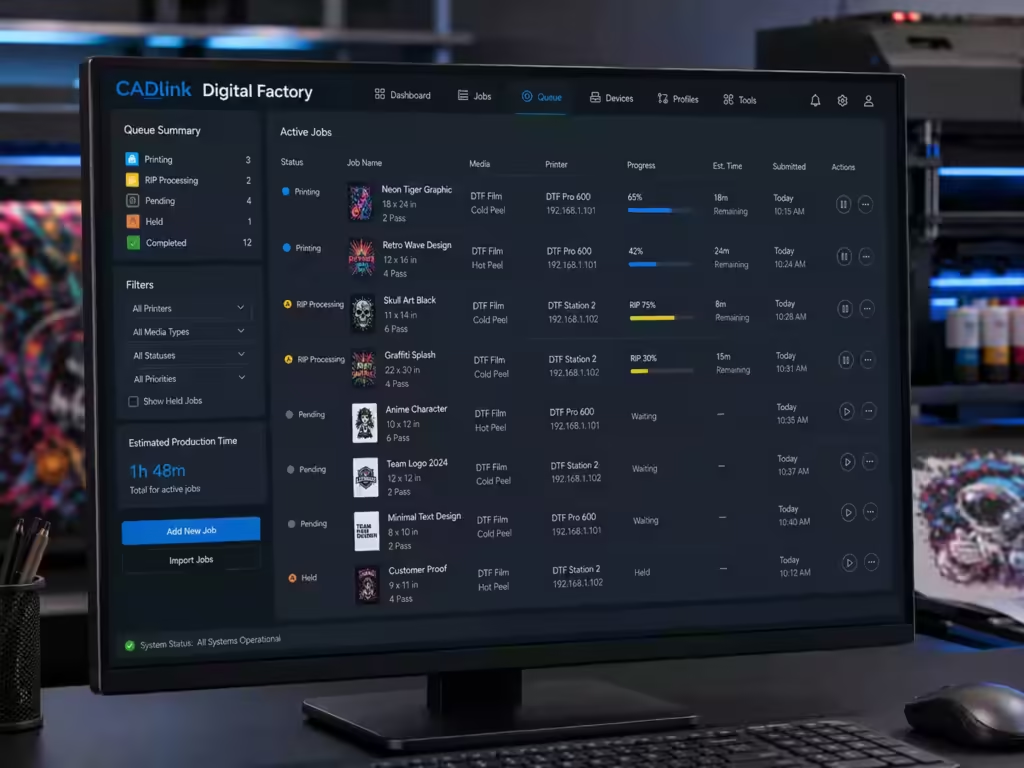
Jobs can be managed through a print queue, allowing us to:
- Pause a job
- Resume printing
- Cancel an incorrect job
- Change the printing order
- Duplicate a previous job
- Organize multiple orders
- Review pending production
Queue management becomes increasingly valuable as a business moves from occasional printing to continuous commercial production.
For detailed operating instructions, we recommend reading our complete guide on how to use CADlink DTF.
Key Features of CADlink DTF Software
Professional Color Management
Color management is one of the main reasons professional print shops use RIP software. CADlink allows us to work with ICC profiles and production-specific color settings instead of depending on a basic Windows printer driver.
This can improve consistency when the same design is printed repeatedly. Consistent settings are especially important for brands, uniform suppliers, promotional product businesses, and print-on-demand shops that may need to reproduce an order weeks or months later.
Advanced White Ink Control
The white layer affects the brightness, opacity, feel, durability, and production cost of a transfer. CADlink provides controls that allow us to adjust the underbase instead of accepting a fixed white layer.
This can be useful for designs containing:
- Fine lettering
- Soft transparency
- Distressed textures
- Photographic details
- Gradients
- Black areas
- Small isolated elements
Correct white ink settings can preserve details that might otherwise become filled, thick, or surrounded by an unwanted white edge.
Automatic Nesting and Layout Tools
Production efficiency depends on using PET film economically. Automatic nesting and layout tools can help arrange multiple designs within the printable area.
A better layout may reduce:
- Unused film
- Manual positioning
- Production preparation time
- Unnecessary printer movement
- Material cost per transfer
Nesting is especially useful when producing gang sheets, mixed customer orders, logo batches, and several garment sizes in one print run.
Print Queue Management
CADlink provides an organized way to manage multiple jobs. Instead of opening and printing every file independently, we can prepare jobs, assign settings, preview them, and control the order in which they are produced.
This supports a more predictable workflow for businesses processing numerous customer files throughout the day.
Print Preview and Production Control
A preview gives us an opportunity to identify visible errors before consuming ink, film, powder, and production time. Before printing, we should check:
- Final dimensions
- Artwork orientation
- Mirroring
- White ink coverage
- Placement
- Clipping
- Transparency
- Resolution
- Queue selection
Preventing one incorrect job can save more time than rushing several jobs into production without verification.
CADlink RIP Software vs a Standard Printer Driver
| Capability | CADlink RIP Software | Standard Printer Driver |
|---|---|---|
| Basic printer communication | Yes | Yes |
| ICC profile workflow | Advanced control | Usually limited |
| White ink generation | Designed for specialty printing | Usually unavailable |
| White choke and spread | Available in suitable configurations | Usually unavailable |
| Automated nesting | Available | Usually unavailable |
| Multiple print queues | Available | Limited |
| DTF workflow controls | Purpose-built | Not purpose-built |
| Production preview | Detailed | Basic |
| Job reordering | Available | Limited |
| Ink optimization | Production-oriented | Basic |
A regular printer driver may be sufficient for office documents and conventional desktop printing. DTF production requires additional control because the job includes white ink, specialized film, transfer preparation, heat application, and color management.
Why Do DTF Businesses Use CADlink?
DTF businesses use CADlink because production quality depends on more than the artwork itself. The same image can produce dramatically different results when printed with different profiles, underbase settings, resolutions, ink densities, or queue configurations.
CADlink helps us standardize these variables. Standardization is important because a professional shop must be able to reproduce successful output consistently.
The software can support business objectives such as:
- Improving color consistency
- Reducing setup errors
- Managing repeat orders
- Controlling white ink
- Organizing production queues
- Reducing material waste
- Processing gang sheets
- Increasing workflow visibility
- Producing more predictable transfers
The value becomes particularly clear when several operators share the same production environment. Saved queues and profiles can provide a more consistent starting point than asking each operator to recreate settings for every order.
Who Should Use CADlink Digital Factory?
CADlink Digital Factory may be appropriate for:
- DTF printing businesses
- Custom clothing brands
- Garment decorators
- Print-on-demand companies
- Uniform suppliers
- Promotional merchandise businesses
- Sign and graphics shops
- Commercial print departments
- Businesses producing gang sheets
- Entrepreneurs building a transfer business
A small shop may use CADlink to establish a repeatable workflow from the beginning. A higher-volume company may use it to organize queues, reduce manual preparation, and control output across repeated production jobs.
Is CADlink Difficult to Learn?
CADlink includes professional production controls, so the interface can appear technical to a new user. However, we do not need to change every advanced option before printing the first job.
A beginner should initially focus on:
- Installing the correct printer driver
- Creating the correct printer queue
- Importing clean artwork
- Selecting the correct ICC profile
- Confirming the design dimensions
- Checking the white underbase
- Verifying mirror mode
- Previewing the job
- Printing a controlled test
- Saving successful settings
Once a reliable starting configuration is established, we can learn more advanced features such as nesting, color replacement, white ink refinement, queue automation, and production templates.
Our CADlink DTF step-by-step guide explains the workflow from installation and printer connection through printing, powder application, curing, and heat pressing.
How to Choose a CADlink License
Before selecting a license, we should confirm that the software edition supports the intended workflow and printer configuration. Important considerations include:
- Printer manufacturer and model
- Windows compatibility
- DTF, DTG, UV, or other production requirements
- Required printer driver
- Number of computers
- Number of printers
- Activation method
- Included support
- License duration
- Upgrade requirements
We should never select RIP software based only on its general product name. A license may be tied to a particular printing category, driver group, printer model, or production edition.
Businesses seeking a non-subscription option can review the CADlink Digital Factory 11 Lifetime License for Windows. The listed package includes a download link and license key and is presented as a commercial lifetime license for Windows.
Best Practices for Using CADlink DTF
Use the Correct ICC Profile
The profile should match the printer, ink, film, and resolution. A profile created for another ink set may not provide accurate results.
Prepare Artwork at the Final Size
Scaling low-resolution artwork inside the RIP cannot restore detail that is missing from the original file. We should prepare the design at its intended physical dimensions whenever possible.
Use Transparent Backgrounds
For isolated logos and garment graphics, a transparent background prevents unwanted rectangular areas from being interpreted as printable artwork.
Check White Ink Before Every Important Job
Small changes to artwork transparency can affect the generated underbase. We should inspect the white layer rather than assuming it is correct.
Print Controlled Test Samples
Before producing a large order, we should print and press a test transfer using the actual garment or a comparable material.
Save Successful Queue Settings
When a combination of profile, resolution, white density, film, ink, powder, and heat press settings produces a strong result, we should document and preserve it.
Maintain the Printer Regularly
RIP software cannot compensate for blocked nozzles, separated white ink, a dirty capping station, expired ink, or an unstable film feed. Software settings and mechanical maintenance must work together.
Common CADlink DTF Problems and Their Causes
Colors Look Different From the Monitor
Possible causes include an incorrect ICC profile, an uncalibrated display, unsuitable artwork color settings, printhead problems, or changes in ink and film.
The White Layer Is Visible Around the Design
The white underbase may require additional choke, or the artwork may contain semi-transparent edge pixels.
The Transfer Looks Dull
Possible causes include insufficient white ink, an unsuitable color profile, clogged nozzles, incorrect curing, low-quality film, or excessive heat.
Fine Details Are Filling In
The white layer may be too heavy, the resolution may be unsuitable, or small transparent spaces may not be cleanly defined in the artwork.
The Design Prints in the Wrong Direction
Mirror mode may be disabled. Text and directional graphics should always be checked in the preview.
The Print Size Is Incorrect
The artwork may have been imported with incorrect document dimensions, scaled automatically, or placed in a queue using unexpected sizing settings.
The Printer Does Not Appear
We should verify the printer connection, Windows detection, driver installation, port selection, and queue configuration. CADlink can communicate through configurations involving USB, Ethernet, or network printing when supported by the printer setup.
Frequently Asked Questions About CADlink
What is CADlink used for?
CADlink is used to prepare and manage artwork for digital printing. In a DTF workflow, it can control color processing, white ink generation, ICC profiles, mirroring, resolution, printer queues, and job output.
Is CADlink a design program?
CADlink includes job preparation and production tools, but its primary purpose is not to replace full graphic-design software. We normally create or edit artwork in a design application and then use CADlink to prepare it for printing.
What is CADlink DTF?
CADlink DTF is an edition or configuration of Digital Factory designed for direct-to-film production. It manages the specialized requirements of DTF printers, including color layers, white underbases, mirrored output, profiles, and production queues.
Does CADlink create white ink automatically?
CADlink can generate a white underbase from the artwork in suitable DTF configurations. We can then adjust settings such as density, choke, spread, and white coverage.
Does CADlink support ICC profiles?
Yes. ICC profile support is a central part of professional RIP color management. The correct profile should correspond to the printer, ink, film, resolution, and production mode.
Can CADlink make gang sheets?
CADlink includes layout and nesting functions in suitable configurations that can help position multiple designs within the printable film area. Available tools can vary by edition.
Does CADlink mirror DTF artwork?
CADlink can mirror artwork through the applicable queue or job settings. We should still verify the preview before printing.
Is CADlink only for DTF printing?
Digital Factory solutions can be configured for several specialty production markets. However, users should purchase the exact edition and driver support required for their printer and application.
Does CADlink work on Windows?
CADlink Digital Factory 11 products are commonly designed for compatible Windows environments. We should check the requirements of the specific edition and license before installation.
Where can we purchase CADlink Digital Factory 11?
We can review the available CADlink Digital Factory 11 Lifetime License and verify compatibility before ordering.
Conclusion: What Is CADlink and Why Does It Matter?
CADlink is professional RIP and production workflow software that converts digital artwork into printer-ready information. For DTF printing, it helps manage the technical elements that ordinary design software and basic printer drivers do not fully control.
These elements include white ink generation, ICC color profiles, mirroring, print resolution, job layout, print queues, printer communication, and production consistency.
For a growing DTF business, the main advantage of CADlink is control. We can create a repeatable workflow, reduce avoidable errors, improve color consistency, manage multiple jobs, and prepare artwork according to the actual requirements of the printer and transfer process.
The software is not a substitute for correct artwork, compatible ink, suitable film, reliable powder, accurate curing, proper heat pressing, or regular printer maintenance. It is the central production layer that helps all of those elements work together more predictably.
To explore available software and additional information, visit the CADlink.

About author

Add comment
You must be logged in to post a comment.